Notification channels
SecObserve can send notifications to email addresses, Microsoft Teams and Slack. This page describes how these channels are set up. Which events are notified and who receives them is described in Notifications.
Configuration
The configuration of email is split into two layers:
- SMTP transport (which mail server to use and how to connect to it) is configured with the
EMAIL_*environment variables at deployment time. These are Django settings that are read once at startup, so they are intentionally not editable in the administration interface. Email is only enabled whenEMAIL_HOSTorEMAIL_PORTis set; if neither is set, the options to send notifications via email are not available. - Addresses (who emails are sent from and to) are configured at runtime in the Settings and in the settings of a product or product group.
The field Email from needs to be set in the Settings, otherwise no email is sent at all.
Notifications for a product
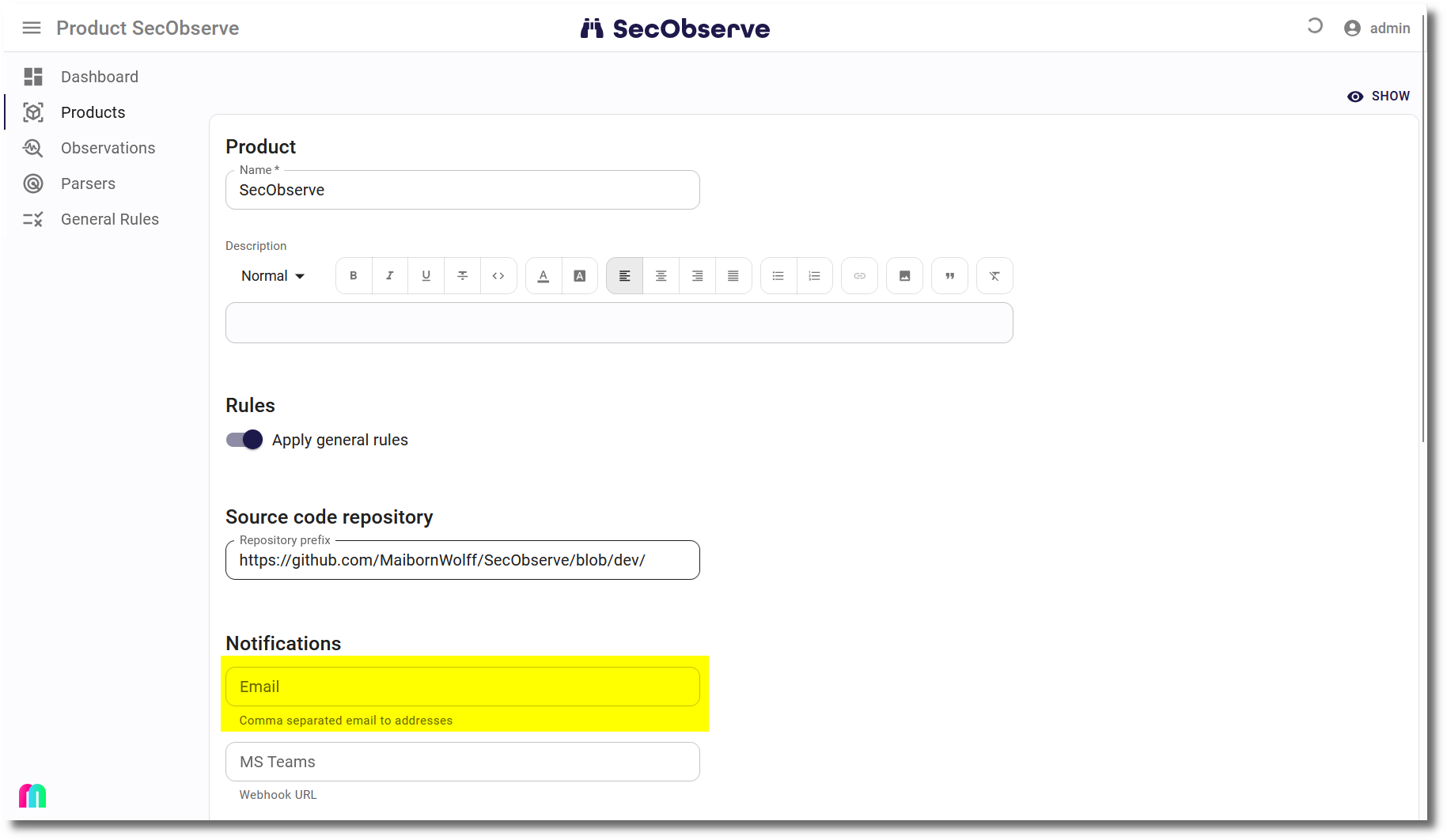
When creating or editing a product or a product group, the field Email can be set in the Notifications section with a comma separated list of email addresses. Notifications for observations and for the security gate of the product are sent to each of these addresses.
Notifications for a user
User specific notifications are sent to the email address of the user, which the user maintains themselves in User menu → Settings → Notifications. Nothing else needs to be configured for the channel besides Email from, the users decide themselves which events they want to be notified about and whether they want them by email at all.
Microsoft Teams
Incoming webhooks
Deprecation notice
Microsoft has announced to discontinue support for incoming webhooks in Teams in favor of Power Automate workflow-based webhooks. Incoming webhooks using URLs from
webhook.office.comcontinue to use the legacy MessageCard format; all other URLs are treated as Power Automate webhooks.
An incoming webhook has to be set for the channel where the notifications shall appear. How to do this is explained in Create Incoming Webhooks. Copy the URL of the webhook to the clipboard, to have it available to set it in SecObserve.
The messages do not include mentions, but a user can set the "Channel notifications" to "All activities" in Teams, to get an active notification when an entry is generated.
Teams workflows webhook
To use Power Automate workflow-based webhooks, copy the webhook URL generated by the workflow integration into the input field. SecObserve automatically detects the format from the URL: webhook.office.com URLs use the legacy MessageCard format; all other URLs use the Adaptive Card format expected by Power Automate.
Slack
An incoming webhook has to be set for the channel where the notifications shall appear. How to do this is explained in Sending messages using Incoming Webhooks. Copy the URL of the webhook to the clipboard, to have it available to set it in SecObserve.
Setting webhooks
Notifications for a product
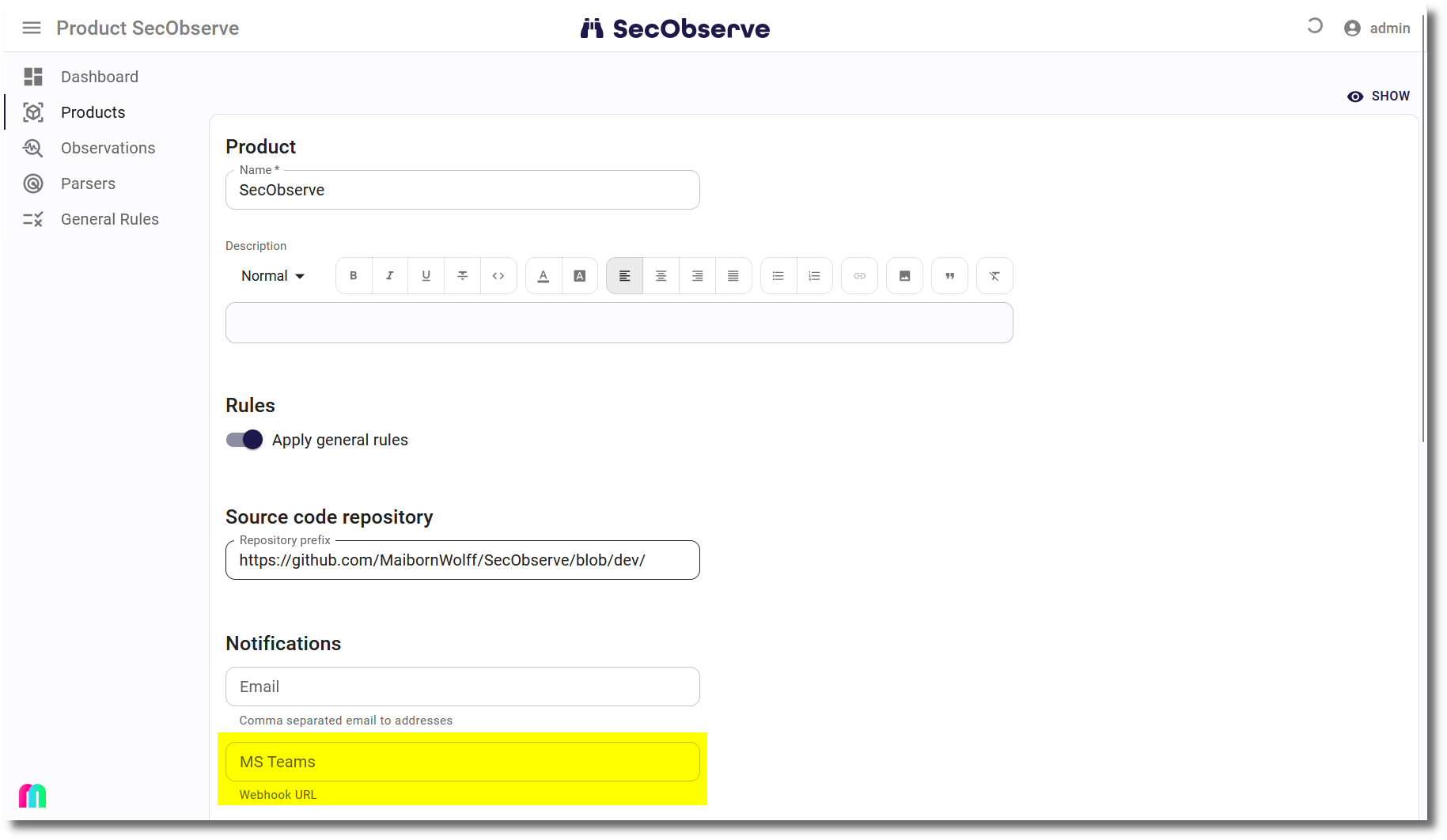
When creating or editing a product or a product group, the fields MS Teams and/or Slack can be set in the Notifications section with the copied webhook URL. Notifications for observations and for the security gate of the product are sent to these channels.
Notifications for observation titles
An administrator can configure the fields Webhook URL to send observation title notifications to MS Teams and/or Webhook URL to send observation title notifications to Slack in the Settings, see Notifications for observation titles.
Notifications for a user
Every user can set a Microsoft Teams and/or a Slack webhook of their own in User menu → Settings → Notifications, to receive their user specific notifications there instead of, or in addition to, email. These webhooks are personal: they are never shown to other users, not even to administrators.
Restrictions for webhook URLs
To avoid that SecObserve can be used to call internal services, webhook URLs have to use https and the hostname must not resolve to a private, loopback, link-local or otherwise reserved IP address. Webhooks that do not fulfil these requirements are not called and the notification is discarded.
Testing webhooks
Next to the input field for MS Teams and Slack webhooks you will find a button >> Test that is enabled when the input field is non-empty and it will send a test notification to the configured channel to verify the correct operation of the integration.
Notifications for exceptions
If an exception occurs while processing a request or in a background task, a notification can be sent to administrators. The destinations are configured in the Settings:
| Setting | Description |
|---|---|
Comma separated email addresses to send exception notifications |
A comma separated list of email addresses. |
MS Teams webhook to send exception notifications |
The copied webhook URL of a Microsoft Teams channel. |
Slack webhook to send exception notifications |
The copied webhook URL of a Slack channel. |
Exception rate limit |
See below. |
Exceptions while processing a request are the ones that make the REST API return the HTTP code 500. Exceptions in a background task are additionally shown in the user interface, see Notifications in the user interface.
There is a ratelimiting active to prevent flooding of notifications, if a series of exceptions occurs. The same exception is sent only once during the timedelta configured in Exception rate limit. The default for this timedelta is 1 hour.