Assessments, approvals and reviews
Assessment
With an assessment of an observation the user can change two attributes of an observation:
- The severity given by the parser must not necessarily match the severity of the observation for the current product.
-
All observations have initially the status
Open. The result of an investigation how to deal with the observation might say,- the product is
Affectedby the observation,
or the observation must not be fixed because it is ...
- ...
In reviewand needs further investigation. - ... already
Resolved. You have to be aware that the observation will be set back toOpenif it will be found in a subsequent import. - ... a
Duplicateof another observation. - ... a
False positivethat has been detected by the scanner wrongly. - ...
Risk accepted, a decision that a breach because of that observation can be managed. - The system is
Not affectedbecause the observation has been mitigated by a measure.
- the product is
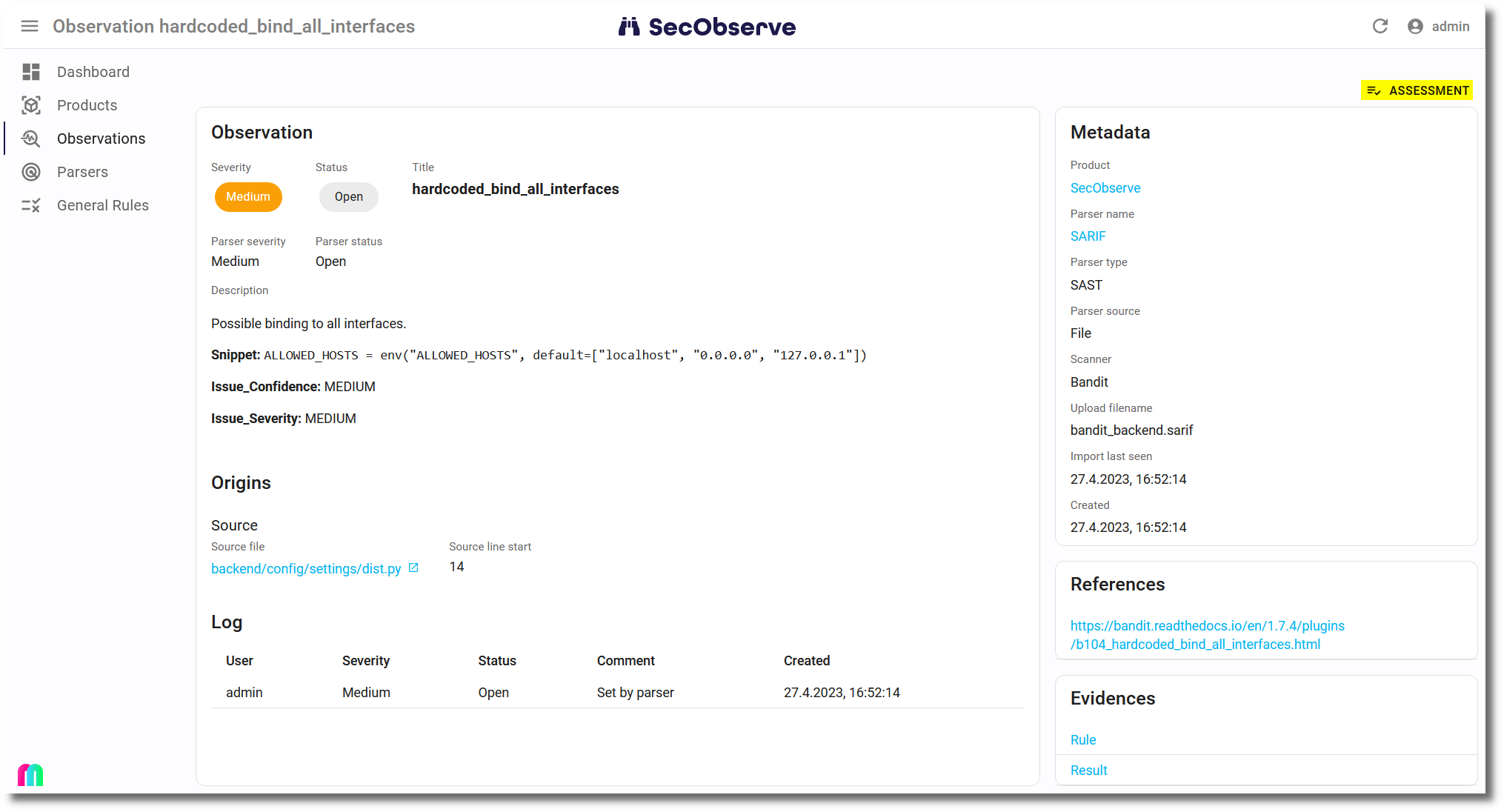
The dialog to enter the assessment can be opened when showing the observation:
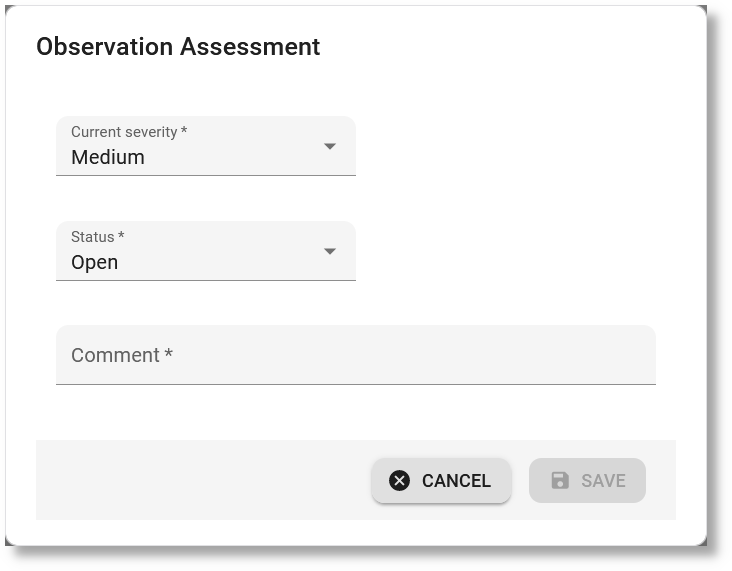
In the assessment dialog the user can change either the severity and/or the status and has to enter a mandatory comment to explain the change:
A new entry with the changed values is stored in the Observation Log after the assessment has been saved.
Approvals
With the default settings of the product, the assessment is activated right away. If more control is needed, the product can be configured to require an approval before the assessment is activated. This can be done while creating or editing a product:
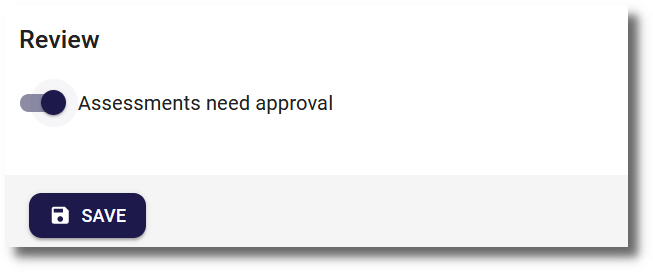
The setting is also available for product groups. If it is set for a product group, it will be inherited by all products in that group.
Note
Assessments need approval cannot be disabled (neither on the product nor on the product group) while assessments are still pending approval. Approve, reject or delete the pending assessments first.
If the approval is required, the dialog showing the observation or and the dialog showing the observation log (after clicking on an entry in the list of observation logs) will show a button to either approve or reject the assessment:
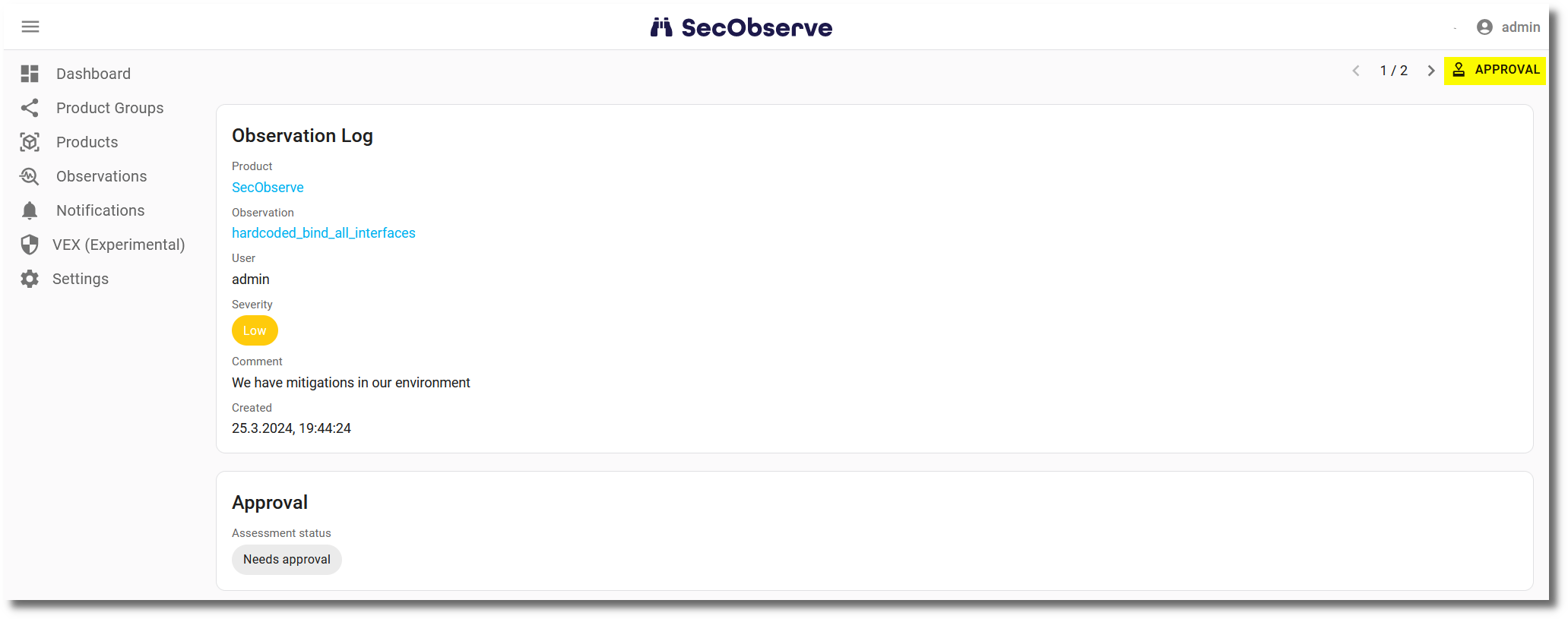
Be aware, that the user who has created the assessment is not allowed to approve or reject it. The approval must be done by another user.
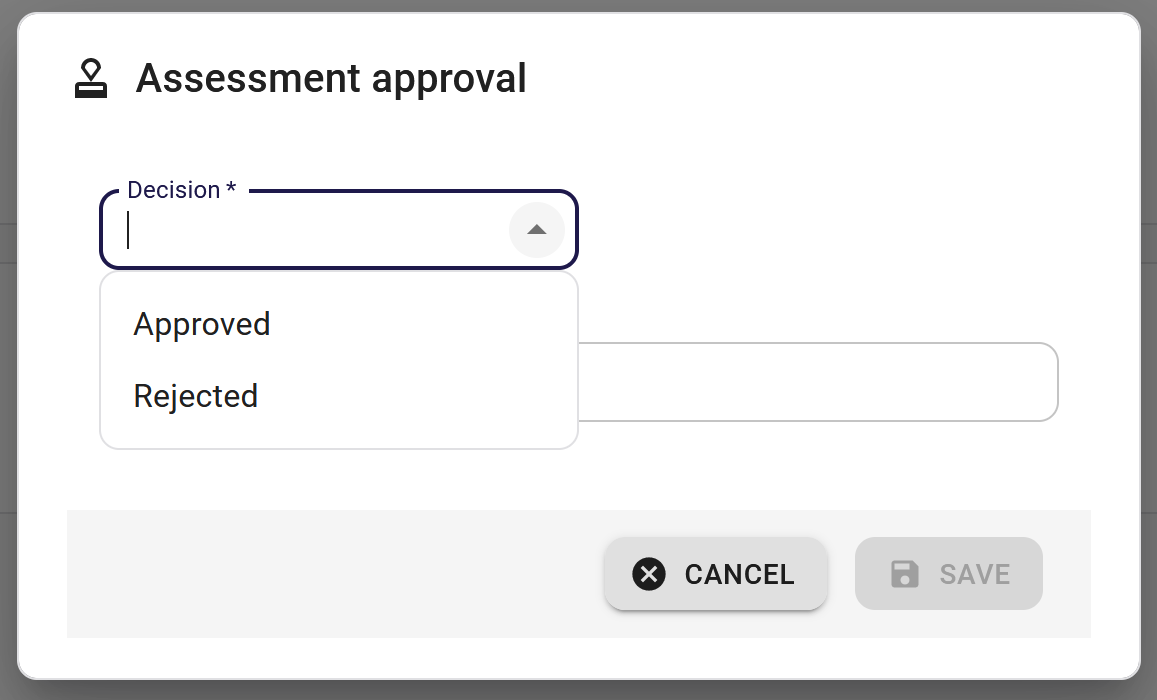
With Approved with edits, the approver can change the comment, the VEX justification and the VEX remediations before the assessment gets active. Several assessments can be approved at once from the list of approvals. With Approved with edits, a field that has the same value in all selected assessments is prefilled. A field with different values keeps the value of each assessment, unless Change for all is switched on for it: then the new value replaces it in all selected assessments, after a confirmation. The VEX justification and remediations are offered when all selected assessments have a status they apply to.
Restricting who may approve
By default, any user with the permission to approve (role Writer, Maintainer or Owner) may approve another user's assessment. In larger organizations the approval often has to be done by a dedicated, independent party, for example a security team. To enforce this, designated approvers can be configured per product. The fields are shown once Assessments need approval is enabled:
- Designated approvers: individual users that are allowed to approve assessments.
- Designated approver groups: authorization groups whose members are allowed to approve assessments.
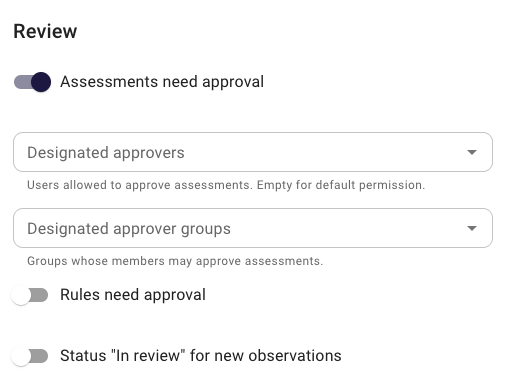
Only Maintainer and Owner may configure these fields. Designated approvers must hold a role with the approval permission (Writer, Maintainer or Owner); the picker only offers such members. The same rule applies to designated approver groups: an authorization group must be assigned to the product (or its product group) with at least the Writer role. Groups with only the Reader role cannot be selected as designated approver groups.
If a user has access through multiple paths, for example directly on the product and through an authorization group, the highest role is used. Product group membership and product group authorization groups are inherited by products in that group.
The behavior is:
- If both fields are left empty, nothing changes: anyone with the approval permission (except the author of the assessment) may approve.
- If at least one approver or approver group is configured, only those designated users - directly or as a member of a configured group - may approve or reject assessments. Users with the
Ownerrole may still approve other users' assessments, even if they are not designated. Designated approvers still need a role with the approval permission and no user can approve their own assessment.
Like Assessments need approval, the setting can also be configured for a product group and is then inherited by all products in that group; the effective approvers are the combination of the product's and the product group's approvers. The restriction applies to both single and bulk approvals.
Propagate assessments to other branches (experimental)
Assessments are often very similar for several branches of a product that contains the same finding. These can be propagated from one branch to others, so that a finding is assessed once and then copied to similar findings in other branches of the same product.
Similar findings are observations within one product that have the same title, the same component (name and version) and the same source location (file, start line and end line). An observation takes part in propagation as soon as it has either a component or a source file, so findings from SCA tools as well as findings from SAST and secrets scanners can be propagated.
Configuration
Product groups and products can configure a list of regular expressions for assessment propagation:
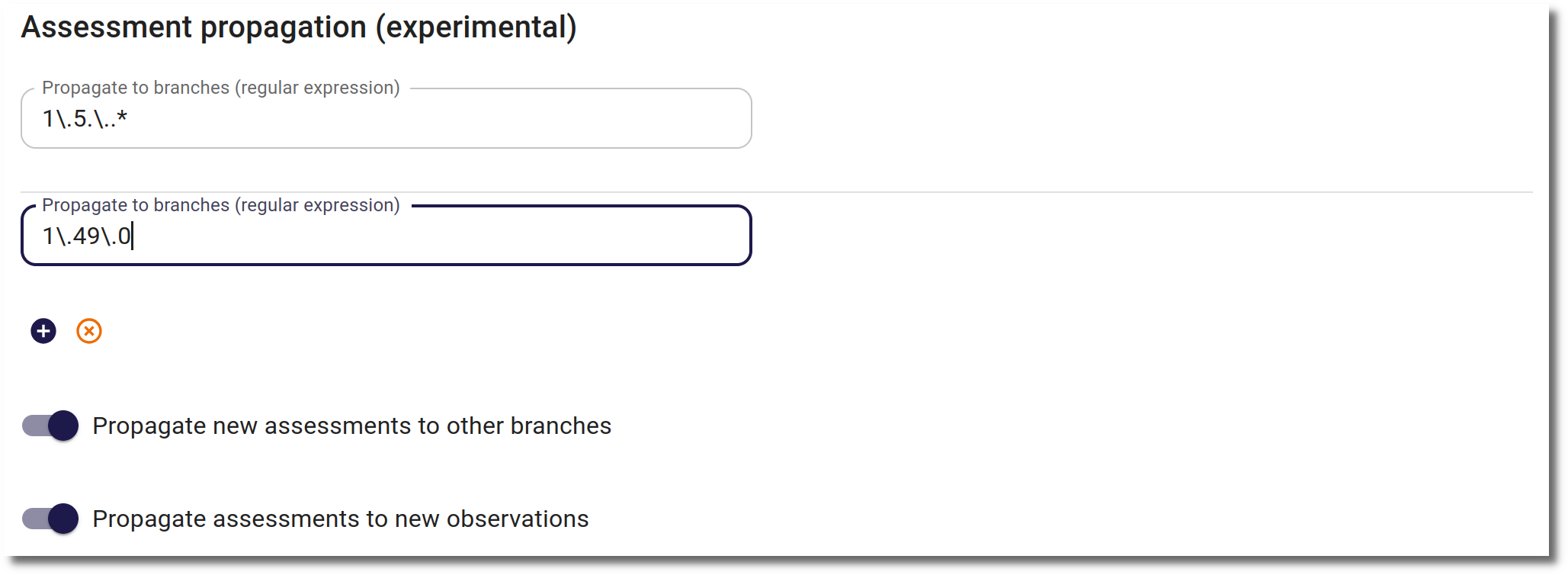
Propagation is active for an assessment when the branch of the assessed observation matches one of the regular expressions; the assessment is then propagated to similar finding in all other branches matching the same regular expression.
Propagation of new assessments
Activation of this direction is controlled with the parameter "Propagate new assessments to other branches".
When an assessment is saved (and auto-approved) or approved, it is copied to all observations on matching branches for similar findings.
Propagated assessments are marked with the id of the original assessment. They are auto-approved (the original assessment already went through approval if required) and are never propagated again themselves.
Propagate assessments for new observations
Activation of this direction is controlled with the parameter "Propagate new assessments to new observations".
When an import creates a new observation, the newest matching assessment from the other configured branches is applied to it automatically. Only manual assessments count as source: approved, not itself propagated, not created by rules, VEX statements or the parser, and changing severity or status.
Reviews
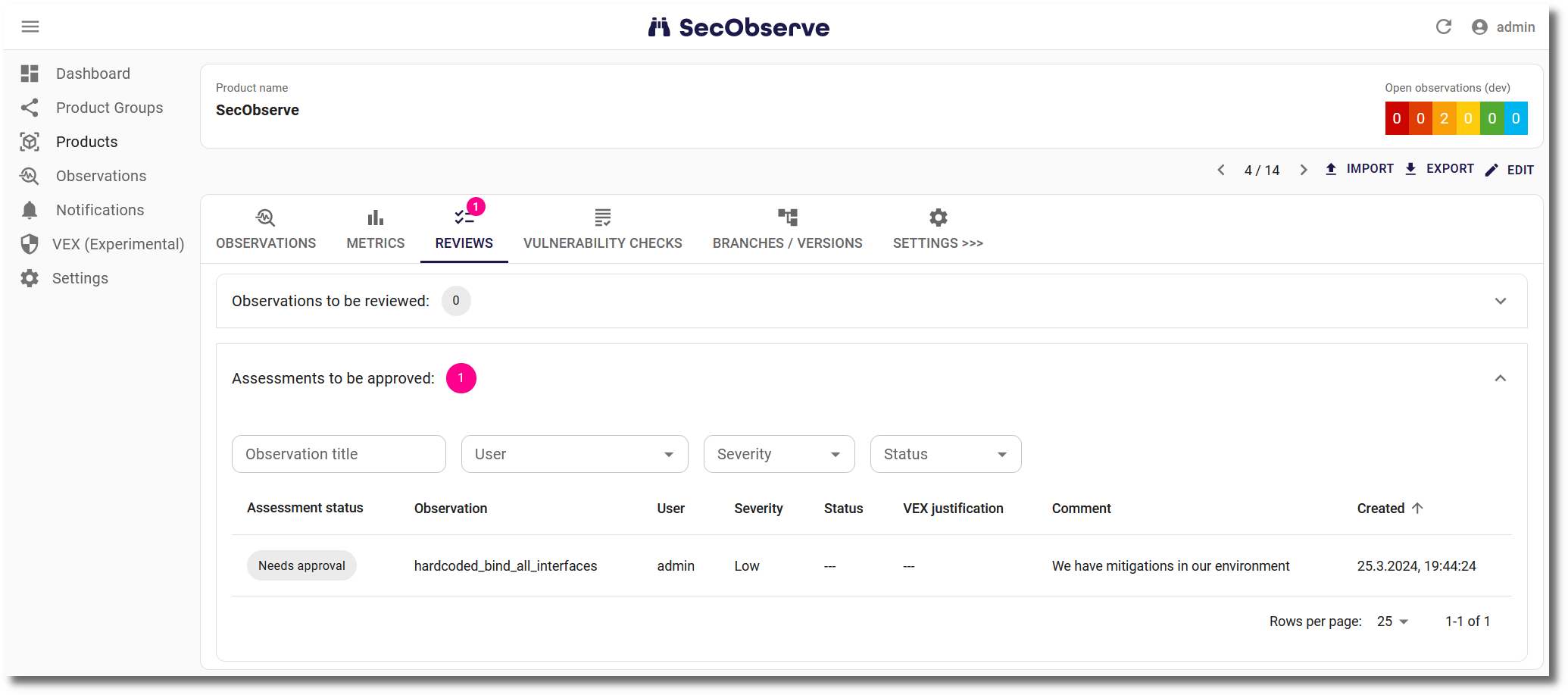
To make it easier to find observations with the status In Review or assessements needing an approval, a tab is shown for the product, if reviews or approvals are pending: